

Tutorial Time: Magical Reflections
- Lenas Eriksson

- Aug 1, 2021
- 2 min read

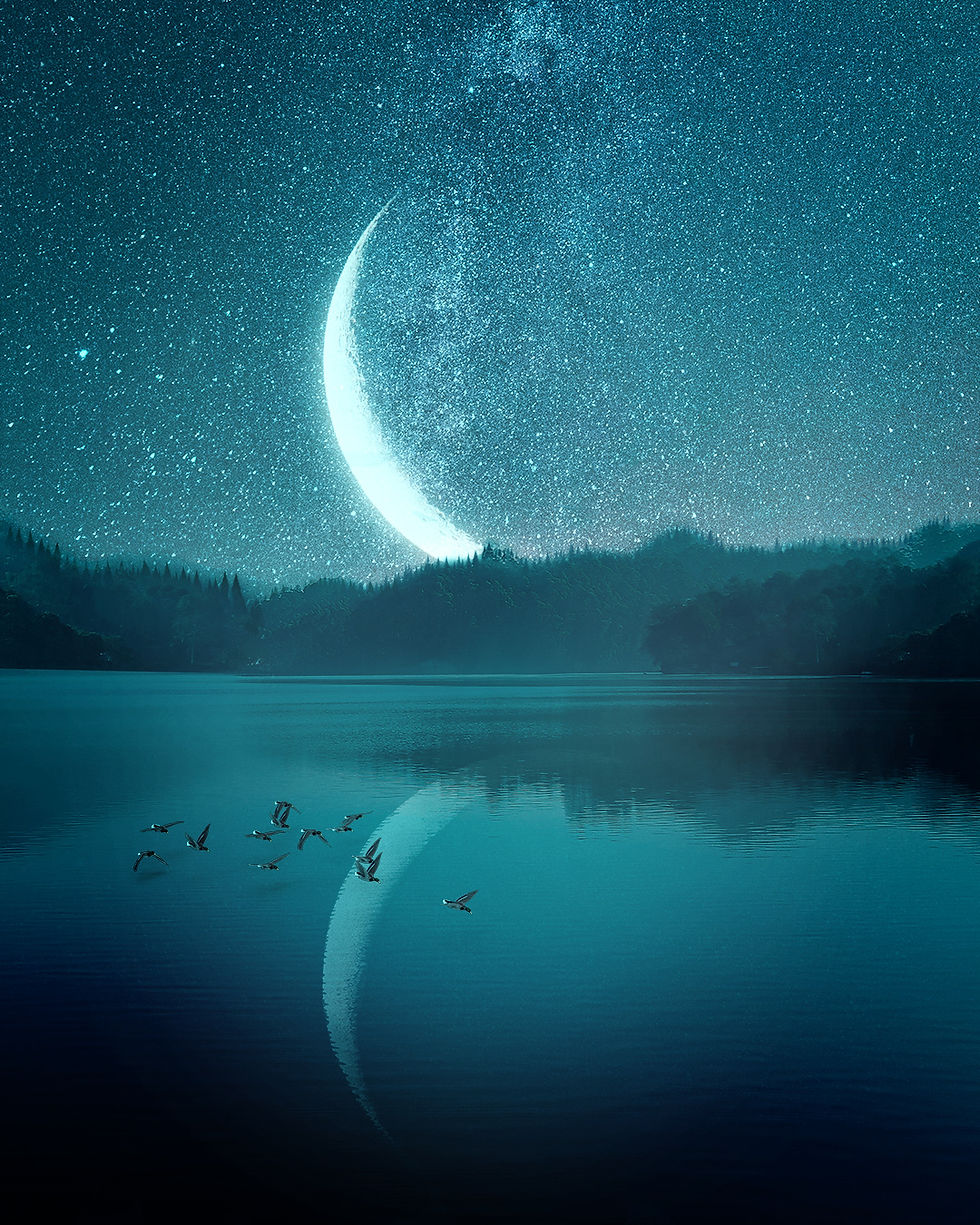
Reflections are beautiful. We all can agree to that, can't we. Photographers use them strategically to transform an image. Normally you would position near a lake, a pond or any kind of water. You would place your subject so that the water surface is mirroring the subject. That is how you would achieve a reflection in photography. What to do though if you don't have the perfect waters close by or the weather isn't playing in your favour? Well, you could use Photoshop! That is what I do all the time and the technique I am going to show you is surprisingly easy to achieve, yet absolutely beautiful. Simply follow my step-by-step instruction and watch the video below and your reflection magic is a fact. Look at these images below. They are all created with the same technique to achieve a reflection.





Let me show you how to create such a reflection yourself. Start with an image of a beautiful sky that you shot yourself or use a stock photo. Read here where to find the best stock photos:

So now that you have that lovely sunset or night sky, open it in Photoshop on your computer or in an editing app like PicsArt. The following instructions describe how to edit in Photoshop on the computer. Editing apps work a little bit different but can be used too.
Select the sky with a selection tool for instance the Rectangular Marquee tool.
Add a layer mask.
Duplicate the layer by pressing Ctrl+J.
Press Ctrl+T and flip the copied layer vertical. Move the vertical layer until it meets the original layer in the middle.
Add a water layer. This could be waves, a ripple or anything that you like. At the end of this article, you can sign up for the reflection Photoshop template containing a water ripple layer.
Change the blend mode of the water layer to screen and adjust the opacity.
Add a layer mask to the water layer, use a soft brush in black with a low opacity and brush over the edges at the horizon to soften the transition.
Done!
Here comes a video showing you step-by-step how to create a reflection in Photoshop.
You don't want to create all of this by yourself but need an amazing reflection image for your blog or social media? No problem. Fill in this form and I send you the Photoshop template with a ready to use reflection image. Simply add yourself or any other subject and the image is perfect to be posted.


Comments